
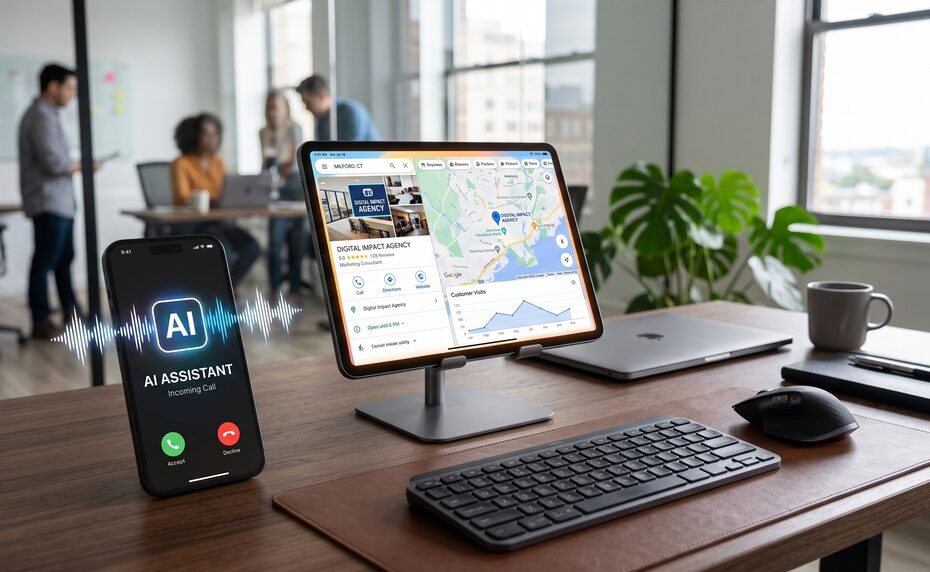
Your phone rings. The person answering is a new hire. The caller asks whether you take walk-ins and whether you have customer parking. Your employee isn’t sure and guesses. A few weeks later, your Google Business Profile shows something you never wrote. This already happens. Google says it may reach out to businesses with automated messages “via call, text, or WhatsApp to the verified phone number on your profile,” and that “any information you provide in response to these messages may be used to update your Business Profile”.
Google has ways to allow business owners to see what information was collected and remove it. Most small business owners don’t know about the calls, nevermind the process for correcting misinformation.
What Google’s Automated Assistant Is Doing
Google uses an automated assistant to confirm everyday details about local businesses. Information Google is attempting to collect includes: “whether you offer curbside pickup, have dedicated customer parking, or accept walk-ins”. Google says it uses this information “to match your business with customers looking for services like yours. In other words, these answers can affect which searches you show up for, not only what your listing says.
These facts now feed Google Search, Google Maps, and Google’s AI assistant answers. A single phone call to one location can change what Google believes about that business. One call from Google can result in major changes to your Google profile.
The New “Collected Info” Tab
For years, business owners have found changes on their profiles with no idea where they came from. The new Collected info tab is Google’s answer to that. Google confirmed on September 14, 2026 that the feature is live. If your business did receive a call, you can review details verified by Google’s automated assistant inside your Business Profile dashboard. Go to the ‘Collected info’ tab to see what was gathered and delete any outdated details.
Don’t See It Yet? No worries. The feature is only available in select regions, languages, and business categories for now. The rollout is gradual, so check back every few weeks.
Keep in mind that Google may be calling your business even if you can’t see the tab yet.
Each item in the tab shows:
- The information Google collected
- Where it came from
- The date it was collected
- The language it was originally given in
- A Delete button
How to Find It
- Sign in to the Google account that manages your Business Profile.
- Search your business name on Google or open your profile in Google Maps.
- Select Edit profile.
- Select Collected info.
The Mistake Most Owners Will Make
Deleting an item in Collected info does not fix your public listing. Deleting collected information “removes it from Google’s records” but “does not change other details already on the Business Profile”.
If the wrong detail has already reached your live profile, you need to do two things:
- Delete it in Collected info so it’s cleared from Google’s records.
- Edit the live field on your profile, such as attributes, hours, or services, so customers see the correct information.
If you only do one, the error stays somewhere. Deleting without editing leaves the wrong detail on your listing. Editing without deleting leaves it in Google’s records.
Our Recommendations
-
Alert Your Staff About These Calls
This is the most important step, and it’s free. Whoever answers your phone, should know that Google may contact the business with automated questions, and that their answers can end up on your public listing.
A simple phone-desk rule: “If Google or an automated assistant asks about our services, hours, parking, pickup, walk-ins, or payment options, answer only if you’re 100% sure. If you’re not sure, say you’ll have the owner update the Google profile directly.” Post this near the phone and add it to your new-hire training.
-
Write a One-Page “Business Facts” Sheet
Give your staff one source of truth. Include:
- Regular and holiday hours
- Walk-ins or appointments only
- Parking (dedicated lot, street, validated, none)
- Curbside pickup, delivery, or takeout
- Service area (towns you serve and don’t serve)
- Payment methods accepted
- Accessibility details (wheelchair-accessible entrance, restroom, etc.)
- Services you do and don’t offer
When everyone gives the same answers, Google gets consistent data.
-
Fill In Every Attribute Yourself
The more complete your profile is, the less Google has to guess or ask. Go through every attribute and service field in your Business Profile and fill in anything that’s blank. If you’ve already answered the question, a wrong answer from a phone call is easier to spot.
-
Check Collected Info Monthly
Add it to your monthly marketing routine:
- Open Collected info
- Compare each item with what’s actually true at your business
- Delete anything wrong
- Check whether the same wrong detail is already on your live profile, and fix it there too
-
Multiple Locations? Monitor Them Centrally
Each location gets calls on its own verified number, and a central marketing team may never hear about them. Details confirmed at one location can drift away from the rest of the brand’s records. Assign one person to review every location’s profile on a set schedule.
And Now This: Google’s Spam Review Alerts
Another Google Business Profile change worth knowing about arrived this month. Google now emails owners when its systems detect a spike in spam reviews on their profile. The email is titled “Protecting your Business Profile from spam reviews.” It says Google removed the spam reviews so they won’t affect your rating, and that “new ratings, reviews, and other user contributions have been temporarily paused,” usually for a few days.
What to do if you get one:
- Don’t panic. Google says no action is required.
- Check your reviews. If legitimate reviews were removed by mistake, you can request a review from Google.
- Be careful how you ask for reviews. For example, if you throw an event for your clients and ask for reviews at that event, tell the clients to leave a review when they get home. Getting a lot of reviews from the same address at around the same time is a surefire way to set off a spam alert. Ask every customer in a natural way. Don’t send big bursts of requests at once, and never offer incentives or post reviews for customers.
The Bottom Line
Your Google Business Profile is no longer something only you write. Google’s AI keeps checking it, filling in gaps, and updating it based on what it hears. That can help you when the answers are right. It can cost you customers when they’re wrong.
Train your staff, fill in your profile, and check Collected info every month. It takes about 15 minutes, and it keeps Google showing customers accurate information about your business.
Need help? Elvin Web Marketing can audit your Google Business Profile, set up a Business Facts sheet for your team, and handle monthly profile monitoring. [Contact us for a free profile check.]